
Using FeedLog with MCP and Skills
Connect FeedLog to your preferred AI application to organize feedback, maintain help articles, and write changelogs through conversation. With FeedLog Skills installed, a coding agent can also use your project code to help integrate FeedLog and handle everyday tasks.
What MCP and Skills do
| Capability | Purpose | When to use it |
|---|---|---|
| FeedLog MCP | Lets an AI application read and act on data in the FeedLog organizations you authorize | Query feedback, reply to comments, manage boards, find and merge duplicates, write help articles, and publish changelogs |
| FeedLog Skills | Gives coding agents FeedLog product knowledge, integration instructions, and task guidance | Integrate the widget and SSO, write articles based on your implementation, or guide routine management through MCP |
You can start managing FeedLog as soon as MCP is connected. Skills are an optional addition. Install Skills when you want a coding agent to work on your project code and integrate FeedLog into your product. Learning about FeedLog and editing local integration code do not require MCP; reading or changing organization data requires a separate connection and authorization.
You choose the AI application, such as Claude, ChatGPT, or a coding agent. FeedLog Agent runs inside your product's feedback widget to answer your customers' questions and handle their feedback.
Connect your AI application
Get the connection details from your dashboard
- Sign in to FeedLog and open the organization you want to manage.
- In the dashboard sidebar, open Organization settings → MCP.
- Under Connect an application, select your client and copy the server URL, commands, or configuration shown on the page.
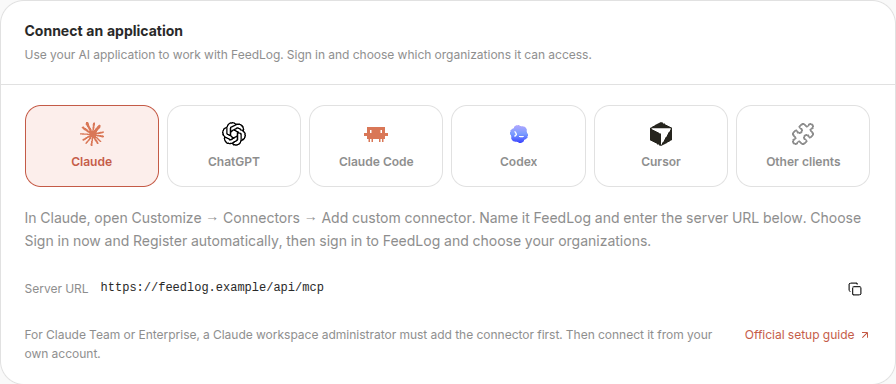
Use the complete server URL provided on the page. On FeedLog Cloud, the MCP server may use a different domain from your organization's portal. Do not construct the address by adding /api/mcp to your portal URL. For self-hosted installations, also use the address shown in your dashboard.
Add FeedLog in your client
Expand the instructions for your client, then continue to organization authorization below. Available features and menu locations depend on the client's version and workspace settings.
Claude
Open Customize → Connectors, then + Add → Add custom connector. Name the connector FeedLog and paste the server URL from your dashboard.
Review the authentication settings, choose Sign in now, and select Register automatically for the OAuth client. Add the connector and complete FeedLog authorization. In a conversation, enable FeedLog through + → Connectors beside the message input.
For Team or Enterprise, a Claude workspace owner configures the connector first, then members connect using their own accounts. See the official Claude guide.
ChatGPT
In ChatGPT on the web, open Plugins, then + → Add custom MCP server. Name it FeedLog, paste the address from your dashboard into Server URL, and choose OAuth for authentication.
Review and acknowledge the client's notice, then select Create as a plugin. Install the plugin, complete FeedLog authorization, and select it for use in a conversation. Your ChatGPT workspace must allow adding and using custom MCP servers.
See the official ChatGPT guide.
Claude Code
Select Claude Code in your FeedLog dashboard, then copy and run the generated commands in your terminal. They have the following form; replace the example URL with the complete address from your dashboard before running them:
claude mcp add --transport http --scope user feedlog https://your-domain.example/api/mcp
claude mcp login feedlog
The second command starts browser authorization. You can also enter /mcp in Claude Code, select FeedLog, and sign in. --scope user makes the connection configuration available across your own projects.
See the official Claude Code guide.
Codex
Select Codex in your FeedLog dashboard, then copy and run the generated commands in your terminal. Replace the example URL with the complete address from your dashboard before running them:
codex mcp add feedlog --url https://your-domain.example/api/mcp
codex mcp login feedlog
If you already signed in while adding the server, you can start using it. Otherwise, run the second command to authorize access. Enter /mcp in Codex CLI to view your current connections.
See the official Codex guide.
Cursor
Select Cursor in your FeedLog dashboard and click Add to Cursor. Review the configuration, finish adding the server, and follow the client's prompts to sign in to FeedLog.
You can also add the server URL to Cursor's MCP configuration. See the official Cursor guide for configuration formats and settings.
Other clients
Select Other clients in your FeedLog dashboard and copy the server URL. Your client must support remote HTTP MCP and OAuth authorization.
For clients that use a mcpServers JSON configuration, use the structure below. Follow your client's documentation if it uses another format. Replace the example URL with the complete address from your dashboard:
{
  "mcpServers": {
    "feedlog": {
      "url": "https://your-domain.example/api/mcp"
    }
  }
}
After saving, connect to FeedLog in the client and complete browser authorization.
Sign in and select organizations
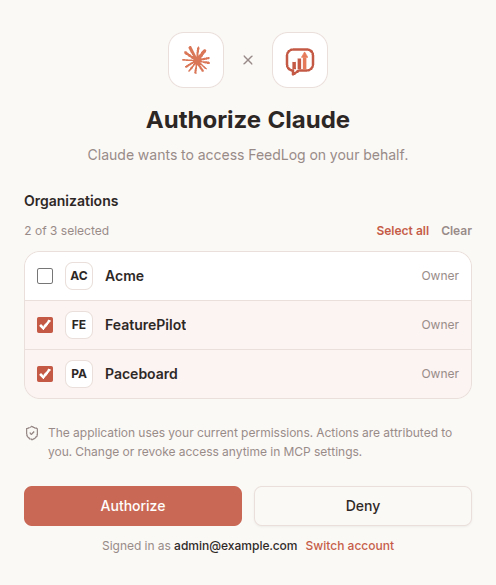
Your client opens the FeedLog authorization page. Sign in if needed. If you are already signed in, check the account shown at the bottom of the page. Select Switch account to use a different account.
Select the organizations the application may access, then click Authorize. One connection can access multiple organizations; select at least one. The role beside each organization is your current role there.
Return to your AI application and try a query:
List the organizations I can access through FeedLog.Check that the results match your selection. You can then name the organization in your requests, such as "Summarize the feedback Paceboard received this week."
Install FeedLog Skills
Install Node.js and npm on your computer, then run this command from your project directory:
npx skills add linkcraftstudio/feedlog-skillsChoose your coding agent when prompted. After installation, open your project in that agent and describe the task:
Add the FeedLog feedback widget to this project using our existing sign-in flow and theme.
Inspect the project first, explain which settings are needed, then make the changes.
Have your FeedLog portal URL ready. To let existing product users access the widget through SSO, you also need permission to create an SSO secret and must configure that secret on your project's server. See the widget integration guide and single sign-on guide.
Installing Skills does not grant access to any organization. To query feedback or save articles, connect MCP in the client where you use the agent.
To update the installed FeedLog skill, run:
npx skills update feedlogSee the Skills CLI documentation for project and global installation scopes and other management options.
Use AI for everyday tasks
Replace Paceboard in these examples with the organization you want to work on. When a request involves multiple organizations, specify the target and task for each one. After an operation, follow the links returned by the AI to check the results in FeedLog.
Organize feedback and draft replies
Review the new feedback Paceboard received this week and group it by theme.
For each group, include representative posts, links to the originals, and a suggested priority.
Draft replies to posts that need follow-up questions. Show me the results before posting any comments.
Check the date range, original feedback, and reply text, then specify which replies to publish. Comments are posted as the authorizing person and may notify the feedback author or subscribers.
Find and merge duplicate feedback
Review Paceboard feedback about CSV exports and identify possible duplicates.
For each group, suggest the primary post, the posts to merge into it, and your reasoning.
Wait for my confirmation before merging.
Check that the posts describe the same need and choose the primary post before merging. You can ask the agent to unmerge feedback when needed. See Finding and merging duplicates for the behavior of merged posts.
Write help articles from your implementation
In a coding agent that can read your project, try:
Draft a help article for Paceboard based on this project's CSV export implementation.
Cover where to find the feature, the steps to use it, and its limitations.
Show me the text first. After I confirm, save it in the User guides collection as a draft.
Check that the article matches the product's behavior and belongs in the correct collection. Public access requires both a visible collection and an enabled Help Center, in addition to a published article. See Controlling public access. Editing an already published article changes its public content immediately.
Draft a changelog entry
Create a changelog draft for Paceboard based on the release checklist below.
Explain the improvements and their impact on users, and link to related feedback.
Keep it as a draft for now.
Include the actual release checklist, or ask a coding agent with project access to review the changes. Check what shipped and review the wording before asking the agent to publish. Published changelogs keep a public snapshot; later edits appear publicly only after you publish again. See Roadmap and changelog.
Manage organizations and application access
Whose permissions does the application use?
MCP applications use the authorizing person's current permissions in each organization, and actions are attributed to that person. Your roles may differ between organizations. Authorization does not transfer permissions between organizations or grant you additional permissions.
A connection belongs to the person who authorized it and the application they connected. Other team members sign in and authorize access with their own accounts. Using the same AI application does not automatically share your connection.
Permission changes affect subsequent operations. Leaving or being removed from an organization ends the connection's access to it. Rejoining requires a new authorization.
Change organization access or disconnect
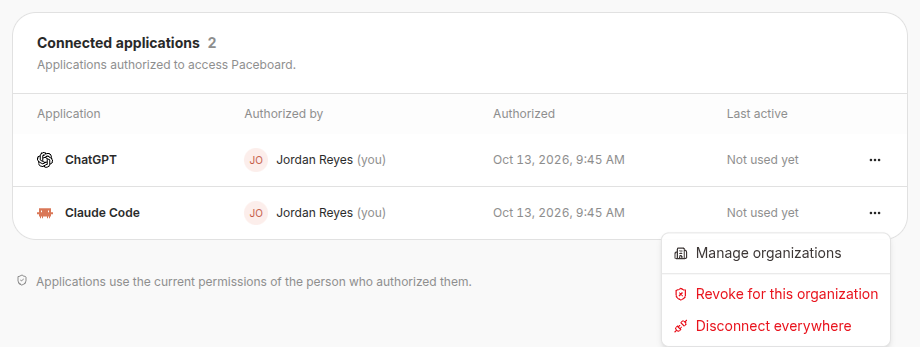
Open Organization settings → MCP → Connected applications, find the connection, and open its action menu. The list shows connections for the current organization, who authorized them, when they were authorized, and when they were last active.
| Action | Effect |
|---|---|
| Manage organizations | Changes which organizations your own connection can access. Continue using the same connection after saving. |
| Revoke for this organization | Removes access to the current organization while retaining this connection's access to other organizations. |
| Disconnect everywhere | Removes this application connection's access to every authorized organization. Other application connections and other people's connections are unaffected. |
Organization owners and managers can also revoke another member's connection for the current organization. Only the authorizing person can change a connection's access across multiple organizations or disconnect it from all organizations.
Organizations you join later are not added automatically; add them to the connection when needed. Removing the last organization disconnects the application. To use it again, start a new connection and authorization from the client.