Writing and publishing help articles
Each article should answer one question or guide readers through one task. Its title helps readers find the answer, its description explains the scope, and its body provides actionable steps. Create a collection before writing your first article.
Create an article
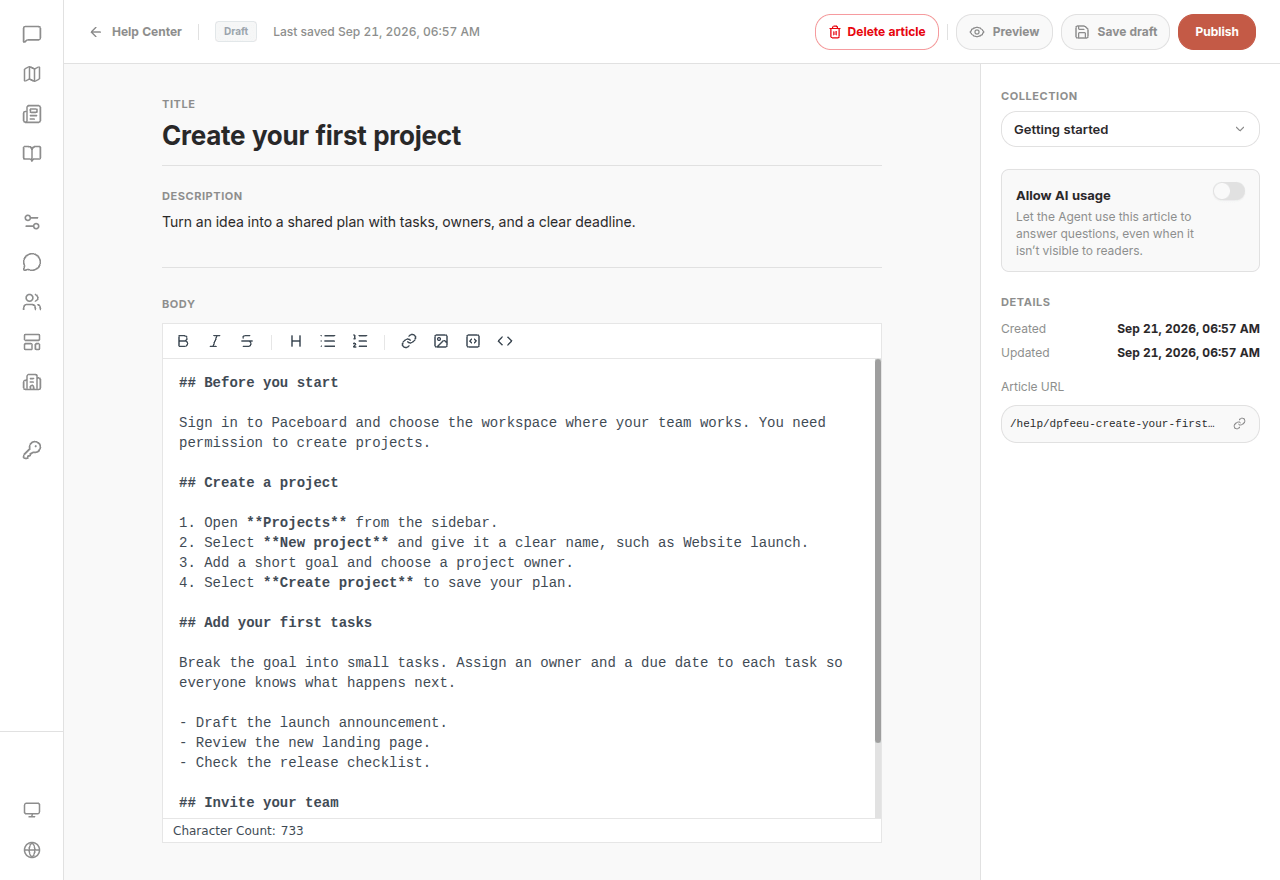
- In the dashboard's Help Center, select New → New article.
- Choose Collection on the right side of the editor.
- Enter the title, description, and body.
- Review Allow AI usage on the right.
- Select Save draft, or publish when the content is ready.
Titles can contain up to 200 characters; descriptions up to 300. “Create your first project” tells readers more than “Project features.”
Drafts can also be used by Agent
Allow AI usage is on by default for new articles. Once saved with this setting on, even an unpublished draft can inform customer-facing answers. Turn it off for unfinished content and enable it when the article is ready. See AI usage.
Write and preview the body
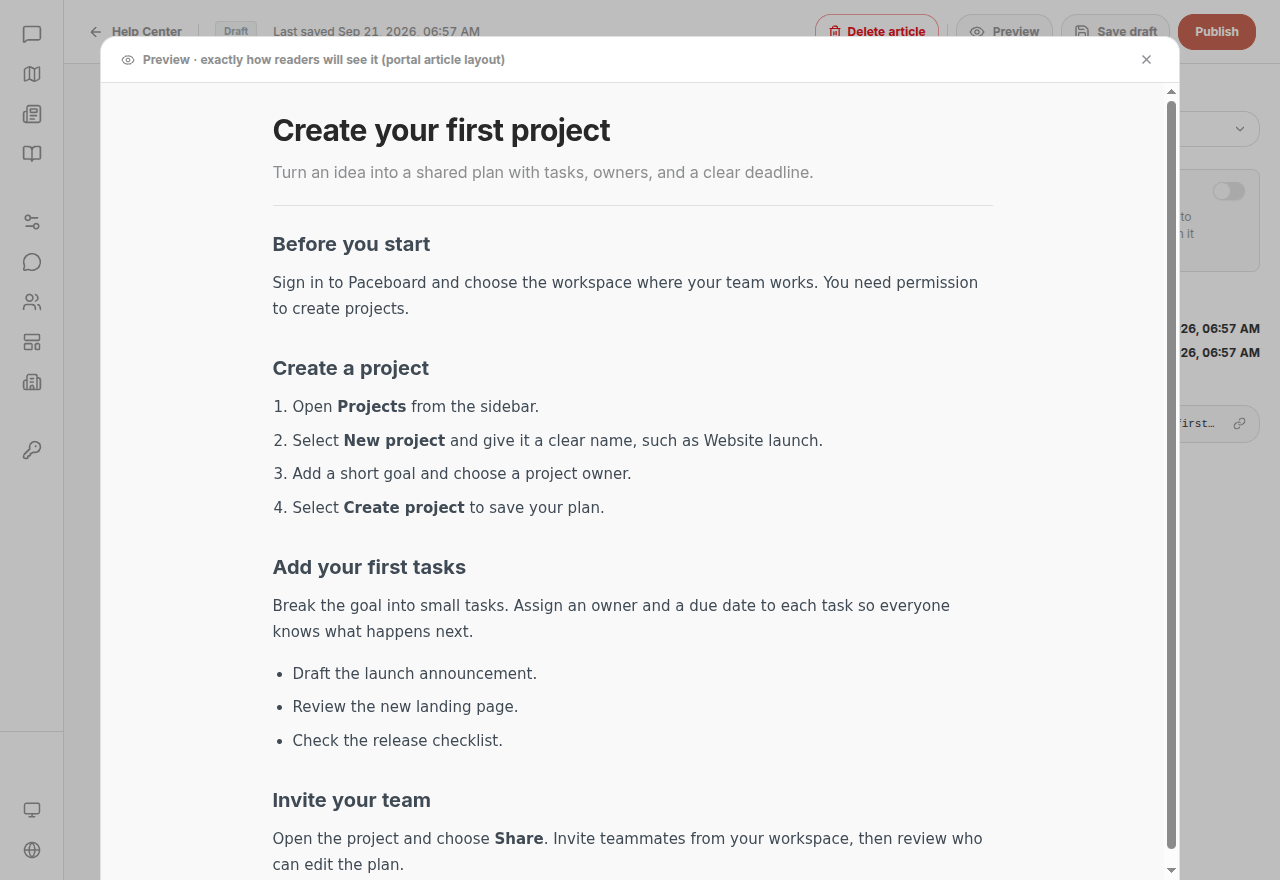
The body supports Markdown. The toolbar provides headings, emphasis, lists, links, images, and code; you can also type Markdown directly.
A useful structure is:
- Explain the outcome and any required permissions or prerequisites.
- Use numbered steps, naming the page and control used in each step.
- Place limits, exceptions, and recovery steps next to the instructions they affect.
- Use images for details that are hard to describe, while keeping the steps in text.
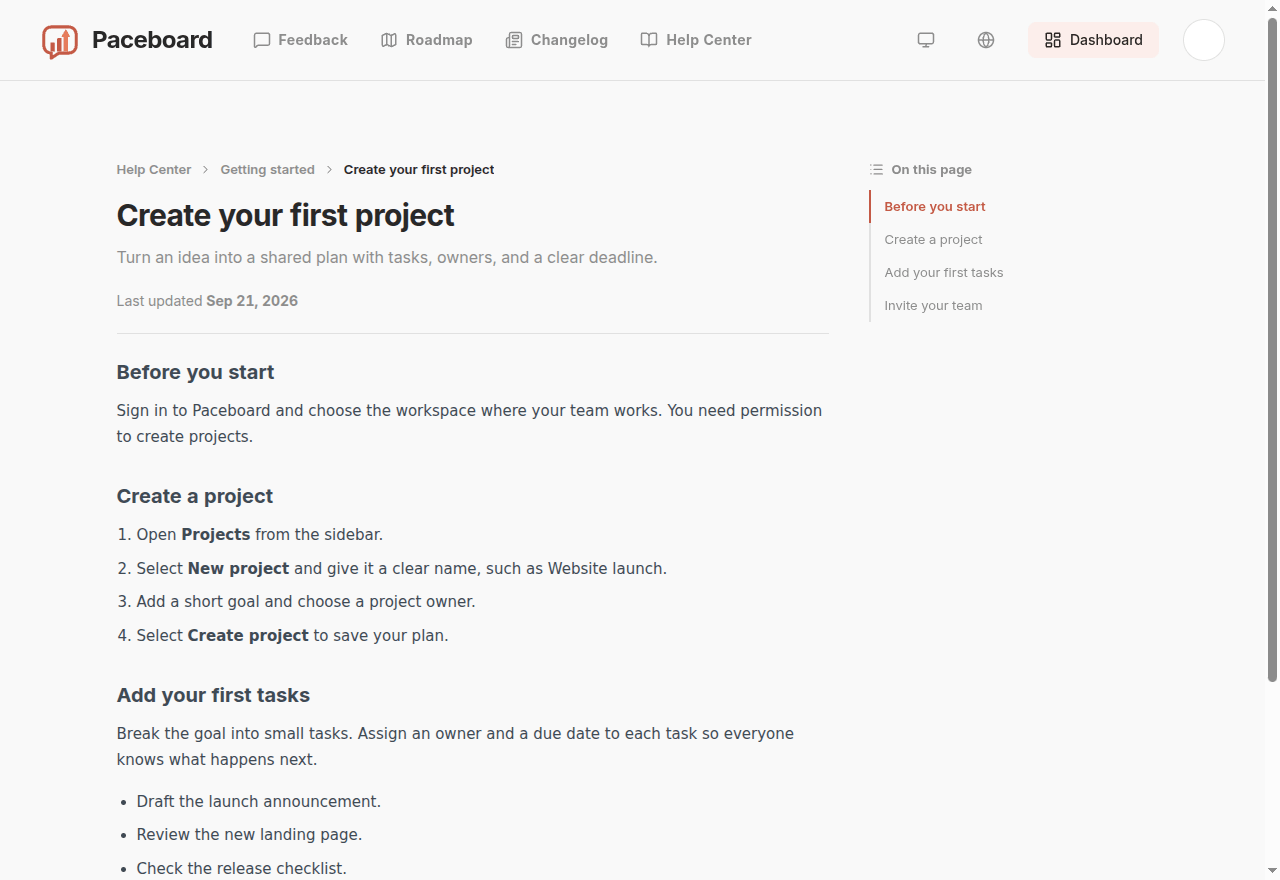
Select Preview to check headings, lists, links, and images. Preview uses the public article layout, but does not save or publish the article, or prove that readers can access it.
Save, publish, and unpublish
Selecting Publish opens a confirmation dialog. Confirm to publish the article. It then shows Published, but public access still depends on collection visibility and the portal setting.
| Current state and action | Result | Public reading |
|---|---|---|
| New article or draft → Save draft | Remains a draft | Unavailable |
| Draft → Publish and confirm | Published | Available when its collection is visible and Help Center is enabled |
| Published → edit content → Save draft | Stays published; changes take effect immediately | Readers see the updated content |
| Published → Unpublish | Archived; content retained | Unavailable |
| Archived → edit title, description, or body → Save draft | Becomes a draft | Must be published again |
Save draft does not create a separate pending version of a published article. To rewrite offline, unpublish first, edit and preview, then publish again. Readers will also lose access to the original article during that period.
Select several articles in the list to Publish or Unpublish them in bulk. Bulk publishing also requires confirmation and does not make a hidden collection visible.
Share and check the public article
After the first save, Article URL appears on the right of the editor. Use its copy button rather than constructing an address from the title.
After publishing, open the actual link and check the text, images, and links. Use a signed-out window to check ordinary reader access. If the link returns 404, follow the public access checks.
Common questions
Readers saw unfinished changes as soon as I saved. The article was already published. Saving does not create a separate draft version; unpublish first if you need to edit offline.
Agent still uses an article after I unpublish it. Unpublishing controls public access. Separately turn off Allow AI usage and save to stop AI usage.
The editor warns about unsaved changes when I leave. Continue editing and save, or explicitly discard your changes. Previewing is not saving.