
Choosing which articles Agent can use
Allow AI usage controls whether FeedLog Agent can find and read an article to answer users. It is separate from public article access.
Add material to your workspace's Help Center and enable this option to make it available as a knowledge source here. Publishing content on an external documentation site alone does not add it to this workspace's Help Center.
Set usage for one article
- Open the article in the dashboard's Help Center.
- Check that its title, description, and body are accurate and suitable for answering customers.
- Turn Allow AI usage on or off on the right, then select Save draft to save the setting.
- Return to the list and check its AI visible label.
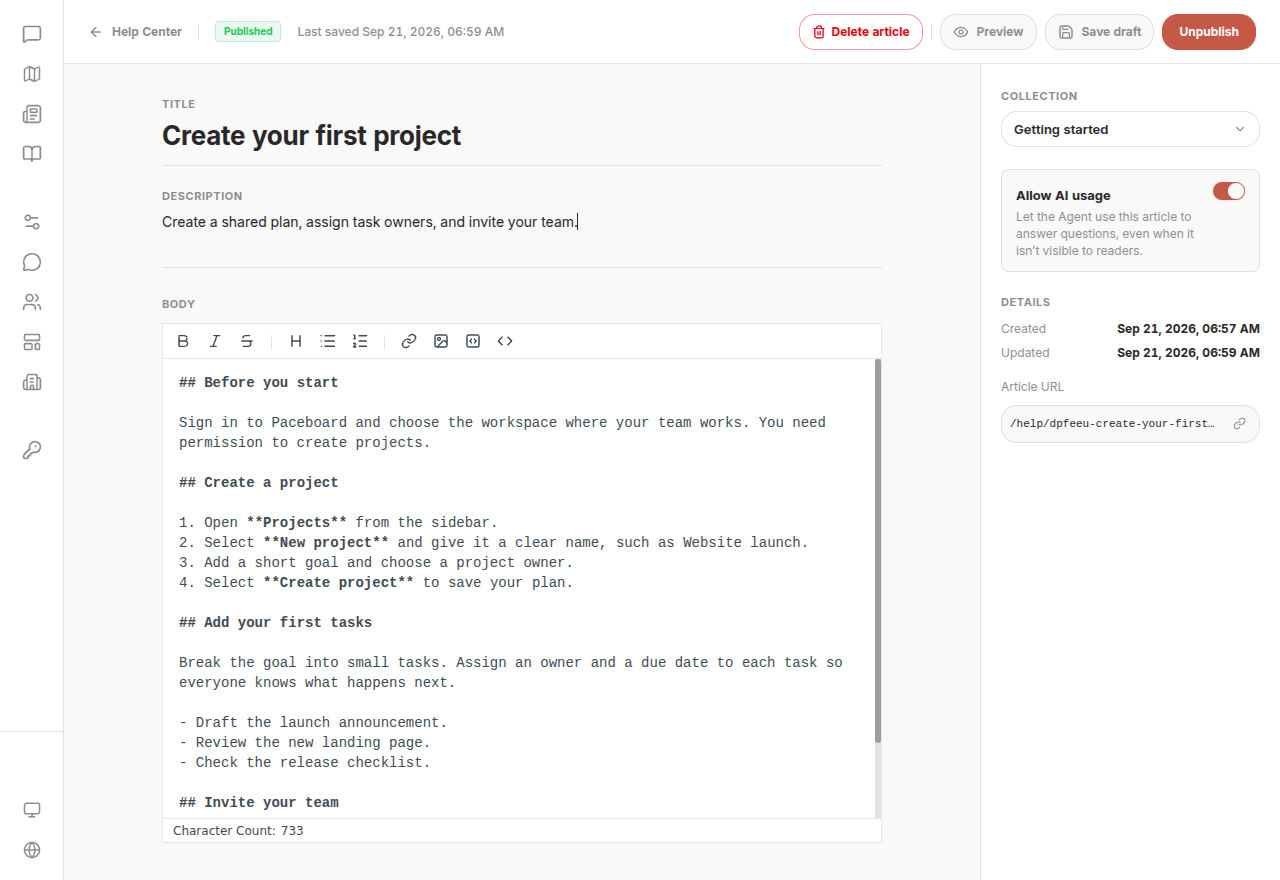
New articles allow AI usage by default. Turn it off for an unverified draft and enable it when ready. Changing only AI usage does not change publication status. If you also edit a published article's body, saving updates the public body immediately.
Change several articles
Select articles using the selection controls on the left of the Collections or All articles list. Open AI visibility at the top and choose Allow AI usage or Stop AI usage. Check the articles' AI visible labels afterward.
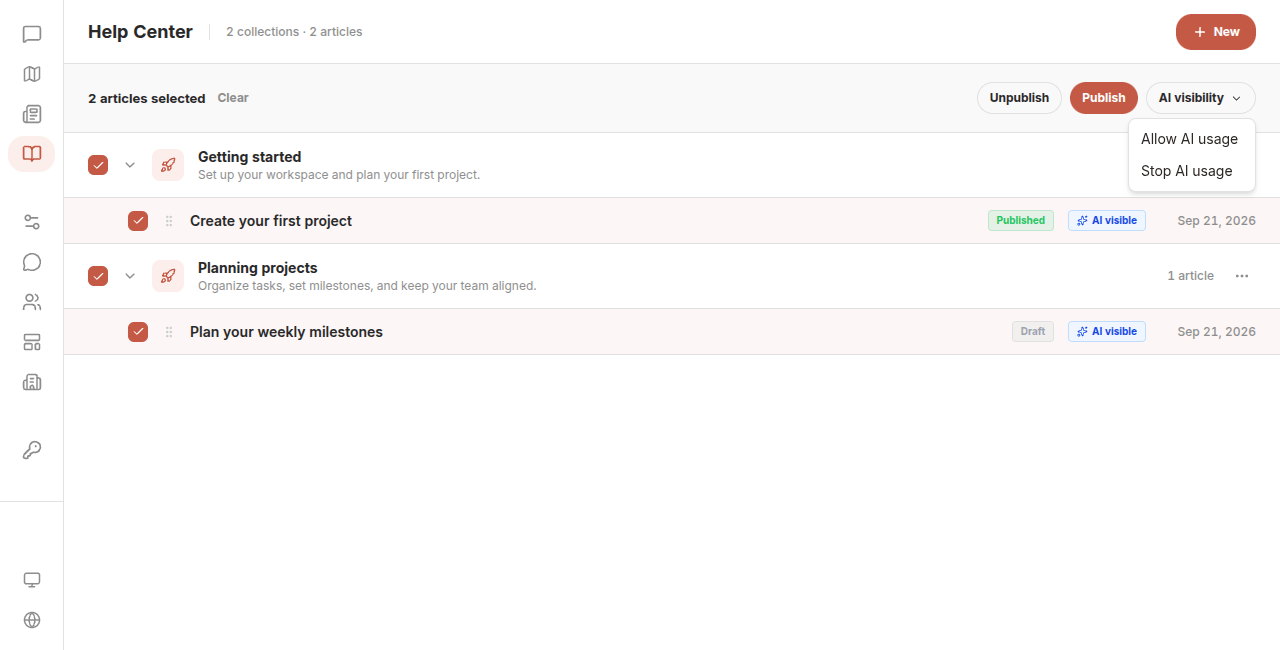
Selecting a collection selects its articles. Collapsing the collection does not clear the selection, so check the selected count before applying an action.
What can readers and Agent access?
| Article settings | Readers can open it | Agent can use it |
|---|---|---|
| Published, visible collection, Help Center enabled; AI usage on | Yes | Yes |
| Same public settings; AI usage off | Yes | No |
| Draft or unpublished; AI usage on | No | Yes |
| Hidden collection; AI usage on | No | Yes |
| Help Center disabled on the portal; AI usage on | No | Yes |
Only publicly accessible articles can appear as clickable citations. Nonpublic articles can still affect customer-facing answers. They can hold approved support explanations, but should not contain credentials, private customer records, or information that must never be disclosed to customers.
Disabling AI usage removes the article from subsequent article-directory and reading-tool access. It does not clear answers already sent or information already in conversation history. Use a new conversation when checking changes to knowledge access.
Prepare accurate, findable material
- Keep one primary explanation for each rule. Avoid conflicting limits across different articles.
- Make titles and descriptions specific. For “Invite teammates to a project,” describe the required role and where to start.
- Put conditions next to the answer. Include applicable plans, permissions, prerequisites, and exceptions instead of leaving Agent to infer them.
- Make the text stand on its own. Screenshots support the explanation; written steps remain necessary.
- Update the source when product rules change. Check related articles for references to the old rule.
This material supports product answers in the widget. Having the right article does not guarantee that every answer will be correct; check representative questions.
Check the result
After saving, start a new widget conversation and ask a question covered by the article. Check whether the answer follows its conditions and limits. If a public article is cited, open the citation and verify that it is readable and relevant.
For an inaccurate answer, first check the workspace, article content, AI usage setting, and any conflicting material. If a public link fails, follow the public access checks.
Common questions
I unpublished an old article. Why can Agent still use it? Unpublishing controls public reading. Separately turn off Allow AI usage.
Why does an unpublished article show AI visible? New articles allow AI usage by default, independently of publication. Turn it off for drafts that are not ready.