
How to give feedback
A product you use may provide a feedback page or open a feedback panel inside the product. You can use either one to report a problem or suggest an improvement. This page explains how to send feedback and when you may receive an email about it.
You may be asked to sign in before you submit, vote, or comment. Signing in ensures that each person can vote once on each piece of feedback and lets the team send you updates about feedback you follow.
Sending feedback
Write it in your own words
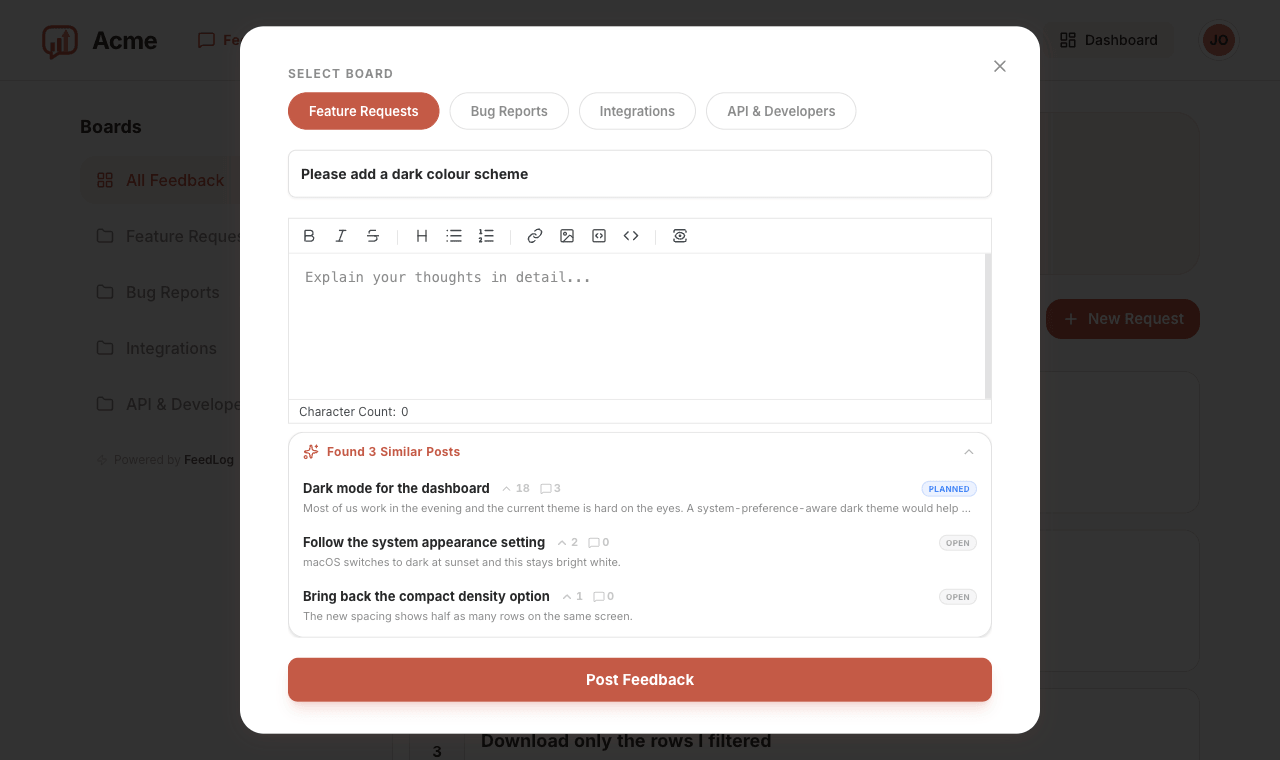
Describe the problem or suggestion in your own words. On a feedback page, choose the board that best fits the topic, then add a title and a short description. In an in-product feedback panel, you can write your message directly. If an image would make the feedback clearer, attach one.
As you type a title on the feedback page, similar existing feedback may appear below the form. Open a suggestion to check whether it describes the same issue. If it does, vote for the existing feedback instead of submitting a duplicate. This keeps the votes and discussion in one place.
Add details in a conversation
If the product uses FeedLog Agent, continue in the same conversation to add reproduction steps or correct a detail. Check the feedback card to see whether it created a post, voted for an existing request, or added a comment. The full conversation is not public, but posts and comments can be read by people with access to that feedback. Do not include passwords or private account details.
Vote for what you want
Each piece of feedback has a vote button. You can cast one vote and click the button again to remove it. The vote count shows the team how many people support the same request.
Comment when there is more to say
Comments appear below each piece of feedback. Add a comment when you have more context, such as what you were doing when a problem occurred or which part of a request matters most to you. Anyone who can view the feedback can also read its comments.
Emails you might get
You may receive an email about feedback you follow when:
- The team changes its status and chooses to announce the change, for example when it moves to Planned, In Progress, or Completed.
- The team posts an official reply.
Comments from other users and replies within a comment thread do not send an email. There is also no digest of newly submitted feedback.
Changing a status does not automatically send an email. The team decides whether to announce each change.
You start following feedback when you submit it, vote for it, or click Subscribe. Removing your vote does not stop the emails, and leaving a comment does not start them.
Turning them off
Open the feedback and click Unsubscribe. Emails about that feedback stop, while your vote and comments remain. Unsubscribing applies to one piece of feedback at a time; there is no account-wide switch. Click Subscribe if you want to follow it again later.
Powered by FeedLog