
Setting up and launching FeedLog Agent
Launching Agent involves preparing product knowledge, configuring feedback and support behavior, and integrating the widget into your product. Workspace owners and managers handle content and settings; a developer connects the website and its existing accounts.
Start with Introduction to FeedLog Agent if you are exploring the feature. If the widget is already installed, begin by checking knowledge and settings rather than installing another entry point.
Start with a small trial
You can install the widget and try conversations and feedback collection before adding help articles. Without product knowledge, answers about workflows and feature limits may be less useful. Prepare guidance for common questions before opening Agent to customers.
You do not need to finish all your documentation at once. Start with one core workflow, document its steps and common questions, and install the widget on a test page. Have your team ask questions and submit demo feedback, then expand access once the knowledge, identity handling, and saved results meet your expectations.
Prepare your initial knowledge
Start with the questions customers ask most often:
| Material | What to explain |
|---|---|
| Core tasks | Where to start, required permissions, and each step |
| Feature limits | Applicable plans, formats, quantity limits, and exceptions |
| Common failures | Symptoms, checks, and recovery steps |
| Support channels | When a person is needed and what information to provide |
Create collections and articles in Help Center, review their titles, descriptions, and bodies, and enable Allow AI usage for suitable material. Turn it off for unfinished drafts. Agent can only provide a clickable public citation when the article is publicly accessible.
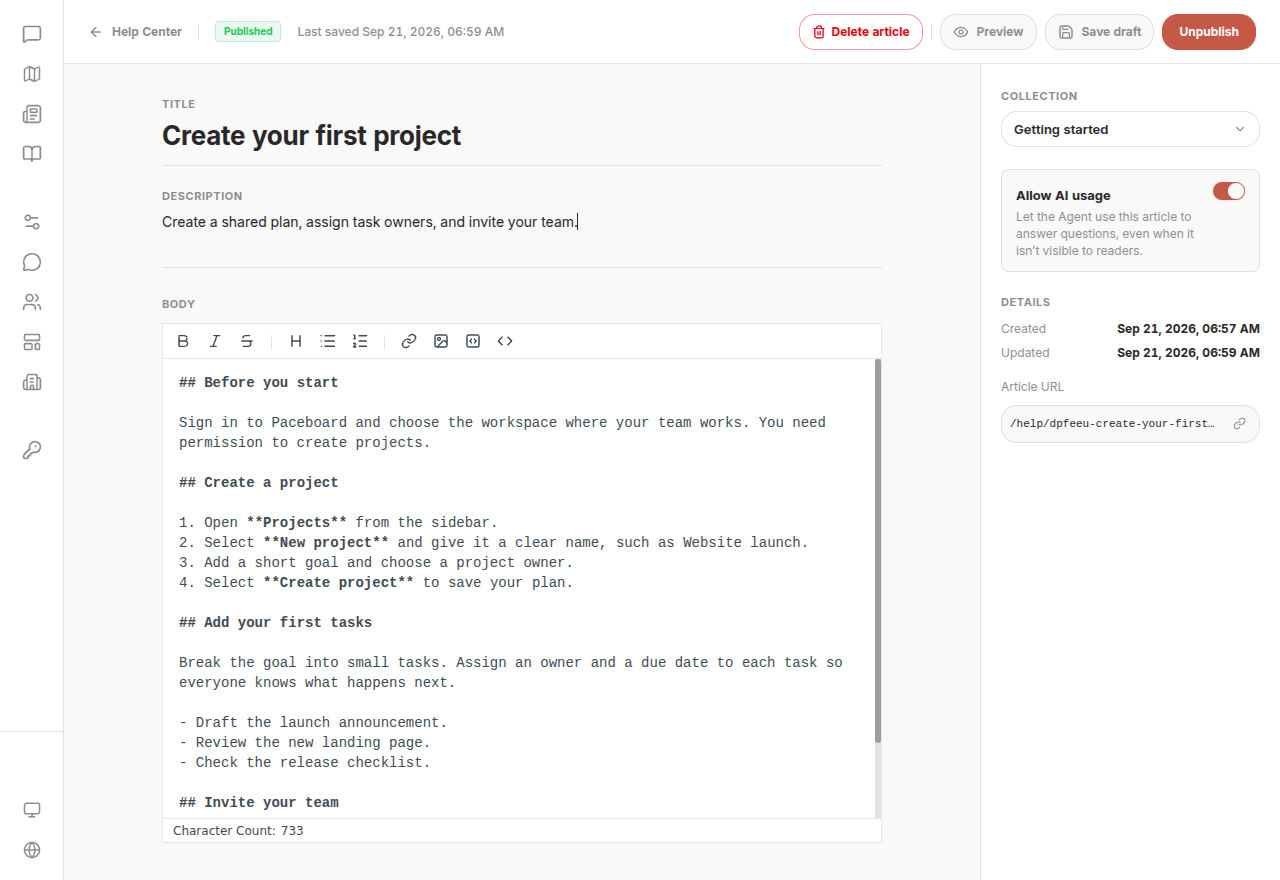
Articles do not all need to be public to be available to Agent, but nonpublic material can still inform customer-facing answers. See Writing articles and AI usage. Material from an external documentation site needs to be added to this workspace's Help Center separately.
Bring in existing documentation
Create articles in Help Center in the dashboard and add the material customers need, with clear titles and descriptions. Enable Allow AI usage for those articles. Start with a few articles covering frequent questions; see Writing and publishing articles.
If you continue maintaining the originals on an external documentation site, update their FeedLog counterparts when product rules change. Check the revised guidance in a new conversation.
Coming soon: AI SKILL and MCP
AI SKILL and MCP support is coming soon, so you can use your preferred Coding Agent to help write or import help articles. For now, create and maintain articles in the Help Center dashboard.
Organize your feedback boards
Review board names and descriptions so Agent can distinguish bugs, feature requests, and improvements. Explain what belongs in each board, such as “Existing functionality that does not work as expected,” rather than just repeating “Bugs.”
Agent uses your existing feedback workflow; separate Agent-only boards are unnecessary. See Creating and managing boards.
Configure the widget and human support
Open Settings → Widget and check:
| Setting | Purpose and guidance |
|---|---|
| Enable widget | On by default; turning it off removes the launcher |
| Support email | The contact address offered for human support; an empty field cannot provide a specific email |
| Human-support rules | Specific situations your team should handle |
| Conversation visibility | Controls how far back customers can access conversations |
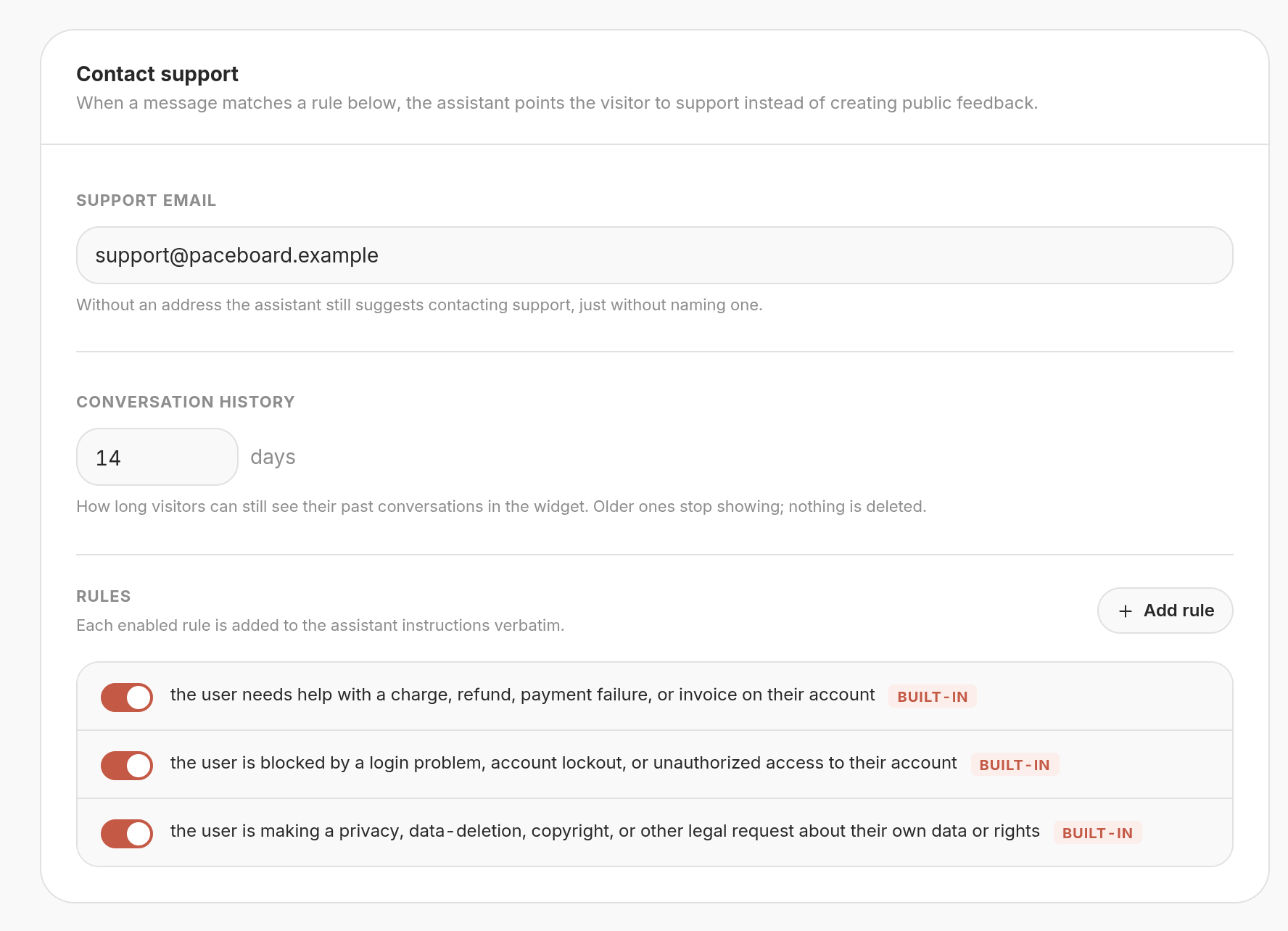
Built-in rules cover billing, account access, and privacy/legal requests and can be toggled individually. Custom rules accept up to 180 characters each. At most 10 built-in and custom rules can be enabled in total.
Describe situations requiring a person:
| Too broad | More specific |
|---|---|
| Anything about billing | The customer needs to check a charge, refund, or invoice on their account |
| Login problems | The customer cannot recover their account and needs identity verification by the team |
“Support another payment method” is a suggestion; “Why was I charged twice?” is an account-specific request. Routing an entire topic to support can divert ordinary product suggestions too.
Agent provides the support email and instructions so customers can contact your team through that channel. Explicit requests for a person and serious privacy concerns can still receive guidance even with rules disabled.
Set up the feedback button
In Settings → Widget → Feedback button, choose the screen side and the bottom and side spacing. The default is bottom right, 20 px from each edge. Desktop and mobile share these settings, with device safe areas handled automatically.
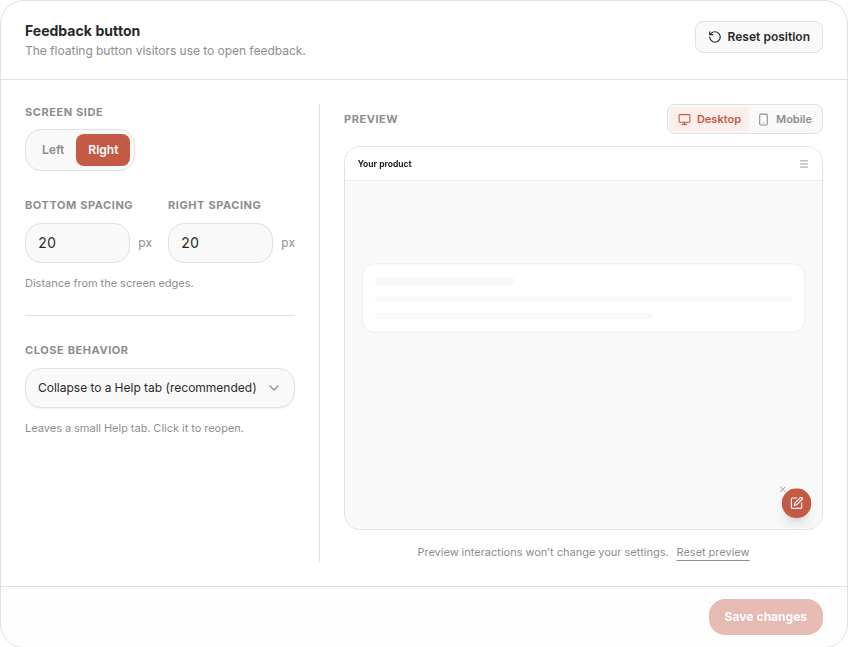
Close behavior determines what happens when a customer closes the floating button:
| Option | Customer experience |
|---|---|
| Do not allow closing | No close control appears on the button |
| Collapse to a Help tab (recommended) | A small tab stays at the screen edge; clicking it opens feedback and restores the floating button |
| Hide for now | The button disappears for the current page and returns when the page is reloaded |
When closing is allowed, the close control appears on desktop hover or keyboard focus and stays visible on mobile. Dragged positions and collapsed state survive reloads in the same browser tab. These settings define the default position and do not override a customer's saved drag. Developers can also adjust placement and state through the SDK configuration.
Switch between Desktop / Mobile in the preview and try dragging, opening, and closing the button. Preview interactions do not change settings or create real conversations.
- Reset preview clears preview interactions and displays the form's current settings again.
- Reset position restores the form to bottom right with 20 px bottom and side spacing, keeping the selected close behavior.
- Save changes saves placement and close behavior. Your website reads the saved settings when the page reloads.
The Enable widget switch saves immediately, without clicking Save changes.
Add Agent to your product
After integration, a floating button appears at the configured position. Customers click it to open the widget and ask Agent questions or submit feedback without leaving the page.
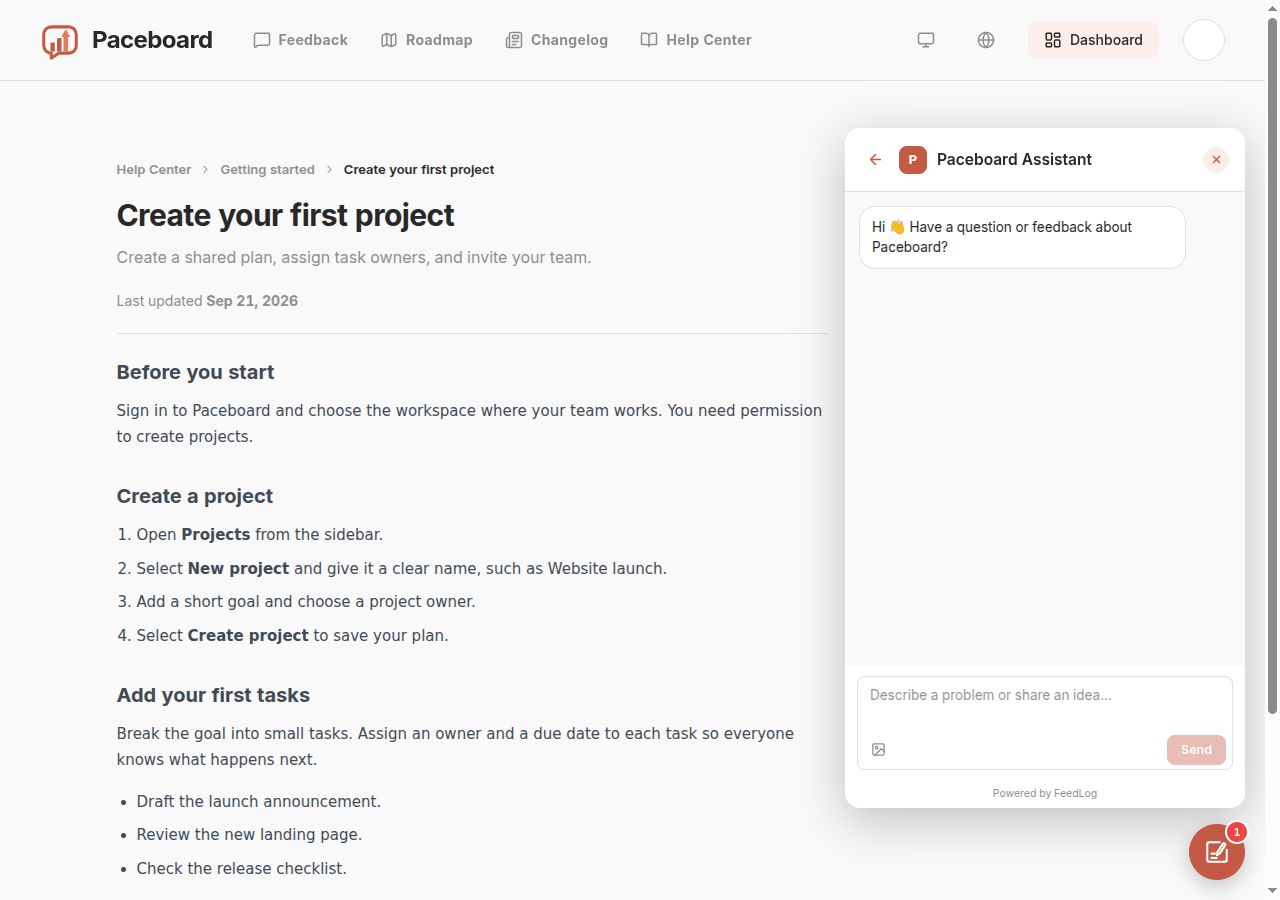
Choose how customers will use it:
- Guest access: customers can start conversations without signing in. Enable guest posting in the workspace, plus voting and commenting as needed.
- Existing product accounts: signed-in customers use Agent with their product identity, without a separate FeedLog account. Workspace permissions determine whether signed-out customers can use guest mode.
Copy your workspace URL from Settings → Widget and follow Install the feedback widget. To use a Coding Agent, copy the Widget integration prompt.
Check that the launcher opens the panel and that signed-in and guest access work as intended, then continue with the question-and-feedback checks below.
Self-hosted installations need a configured model service. Screenshots also require image storage and a vision-capable model.
Check the experience before launch
Open the widget from your product and use questions you can verify against its actual behavior:
| Scenario | Check |
|---|---|
| Ask a documented question, then follow up about a condition | The answer follows the article and understands the previous message |
| Ask in a language your customers use | The reply uses the customer’s language and explains product terms and steps clearly |
| Open a public citation and return | The article loads and the original conversation is accessible |
| Ask something not covered by the knowledge | The answer avoids inventing steps, policies, or commitments |
| Describe an existing feedback request | The match represents the same issue and the action result is correct |
| Submit a new issue, then correct a detail | The saved post is accurate and subsequent edits or comments respect the conditions |
| Ask for human help with a personal account issue | Contact details are correct and private details do not become public feedback |
| Try signed-in and allowed guest identities | Posting, voting, and commenting follow your permissions |
Feedback actions save real content, and public posts appear in the portal. Use clearly identifiable demo requests without real private information. Administrator notification behavior differs from ordinary users, so do not test subscriptions only with an admin account.
Resolve knowledge gaps, conflicting rules, and incorrect contact details before opening the widget to customers. Use Troubleshooting to diagnose failures rather than repeatedly reinstalling the widget.
Handle the feedback Agent collects
Posts created by Agent follow your existing feedback workflow. Open Feedback in the dashboard and handle new submissions as usual:
- Read the title, description, and comments, check the request and its board, and merge duplicates where appropriate.
- Update the status after reviewing the request and reply in comments. Use the roadmap and changelog to share plans and releases.
- When there is progress to communicate, send an update using the feedback notification rules. Customers can also return to My feedback in the widget to check the current status and unread updates on their submissions.
Maintain knowledge after launch
Update the original article when a product rule changes, then check related material for old references. Use a new conversation to verify knowledge changes rather than confusing existing conversation context with a fresh article read.
Recheck representative questions and public citations regularly. When adding features, document their steps and limits in Help Center rather than only naming them in a changelog.
Common questions
Can my team read full Agent conversations in the dashboard?
The dashboard currently provides access to feedback posts and their comments, but has no view for full Agent conversations. Conversations that only contain questions and answers, without creating feedback, are also not available in the dashboard.
Coming soon: Inbox
Inbox will let your team view all customer conversations with Agent, including questions that did not become feedback, and reply directly. This module is not yet available.
If the widget is already installed, do I need a separate Agent integration?
Agent uses the same widget entry point. Start by preparing help articles, reviewing support rules, and testing actual conversations. See Install the feedback widget for SDK integration and update guidance.
Do customers need a separate FeedLog account?
Products with accounts can pass their existing customer identity through the widget integration. Products without accounts can enable guest posting, voting, and commenting as needed. Follow “Add Agent to your product” on this page.