
Creating and managing help center collections
Your help center brings product instructions and common questions into your feedback portal. Readers can browse collections, search articles, and read public articles cited by FeedLog Agent inside the widget.
A collection groups related articles, such as Getting started, Planning projects, or Troubleshooting. Every article belongs to a collection. Workspace owners and managers can manage this content under Help Center in the dashboard.
Create your first collection
- Open Help Center in the dashboard sidebar.
- In an empty help center, select Create a collection. Otherwise, select New → New collection.
- Choose an icon and enter a name and description. The name identifies the topic; the description tells readers what they can find there.
- Set Visible to readers, then select Save.
For example, group workspace setup and first-project instructions under Getting started, with the description “Set up your workspace and plan your first project.” Names can contain up to 100 characters; descriptions up to 200.
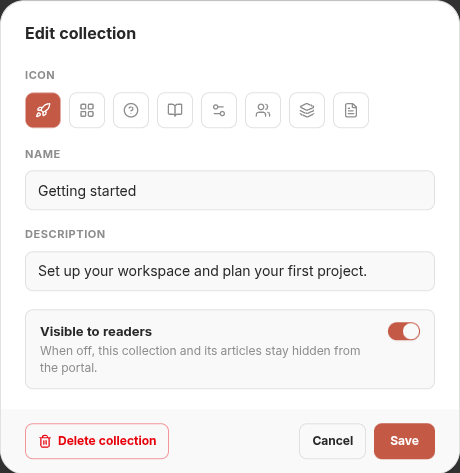
Next, write and publish an article. When you are ready to launch, also enable Help Center under Settings → Portal. See public access.
Find and organize articles
The Collections view groups articles by collection. Click a collection row to expand or collapse it, and click an article title to edit it. Switch to All articles to browse across collections. The search field searches article titles.
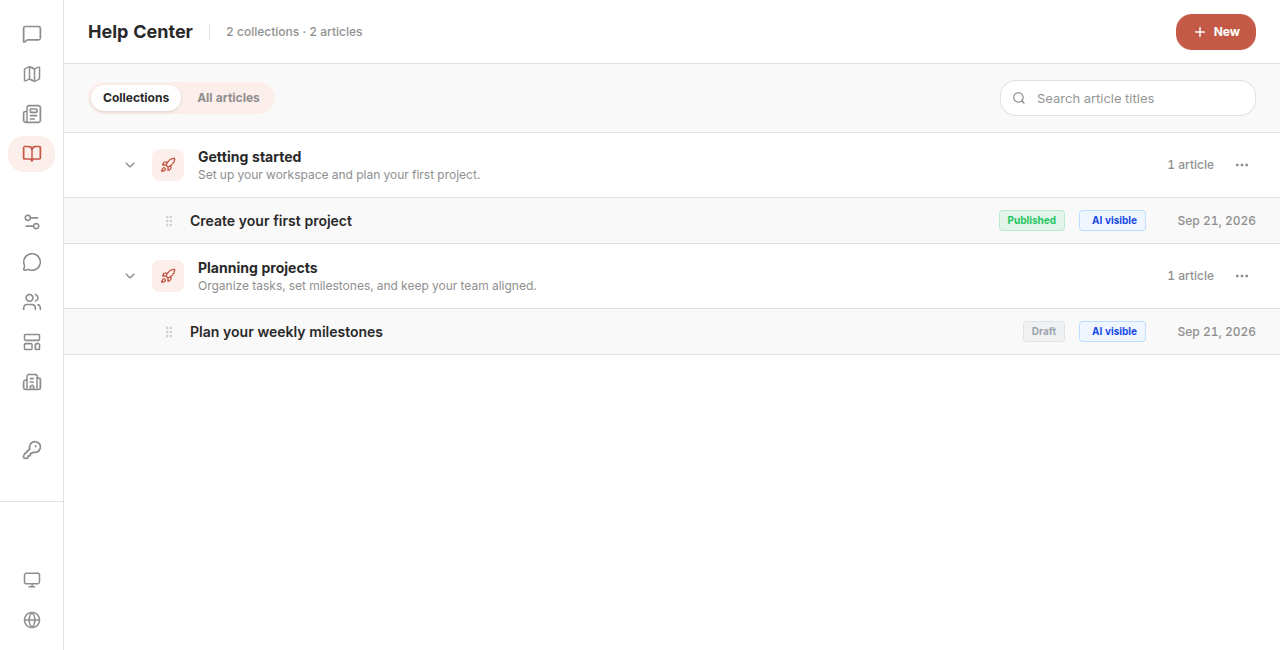
Hover over the left edge of a collection row and use its drag handle to reorder collections. Expand a collection to drag its articles into the desired order. To move an article to another collection, change Collection on the right side of its editor.
The ellipsis button on the right of a collection opens its settings, where you can change its name, description, icon, and visibility. Organize around reader tasks; you do not need a collection for every small feature.
Hide or delete a collection?
| Action | Effect on readers | Effect on saved content |
|---|---|---|
| Turn off Visible to readers and save | The collection and its articles cannot be read publicly, including published articles | Content and article publication states are retained; turn visibility back on to restore access |
| Delete the collection | The collection and its articles are no longer accessible | Every article in the collection is also deleted. This cannot be undone |
Hide a collection to temporarily take a group of articles offline. Use Unpublish in the article editor to take down just one article.
Hiding a collection does not stop Agent from using its articles. To stop AI usage as well, change Allow AI usage on the articles, individually or in bulk.
Common questions
A collection contains articles but does not appear publicly. Check that the collection is visible, its articles are published, and the portal has Help Center enabled. All three conditions matter.
Collapsing a collection did not reduce the selected article count. Collapsing changes the view, not the selection. Check the count before bulk publishing, unpublishing, or changing AI usage. Select Clear to end the selection.